A few years ago, we started using an AAC device. If you’re not familiar, with AAC it stands for Augmentative and Alternative Communication (AAC) and they are different tools that help children and adults with speech delay, who are non-verbal or have communication issues.
They are usually housed on an iPad, tablet, or similar device. They can be used either to replace speech or to complement it-some versions only show the symbols whilst others narrate the symbols to put a voice to the symbols. Let’s learn more about using an AAC device and speech delay.
Why we used an AAC device and speech delay
My son is 6 and has autism and a speech delay We have been having therapy since he was 22 months old and we’ve made really good progress (you can read about other strategies we’ve used in my ebook of our speech delay journey). One thing that really helped us earlier in our journey was to use symbols-and an AAC device.
We started this just before he was two and he would hand us symbol cards for words like BISCUIT. This then expanded to an aided language display; which is a mat with lots of symbols on and the child points to the symbols on it. This was really successful as Jude is a really visual learner and it seemed to help him process instructions too. Soon he was using hundreds of symbols and, despite our worries, it actually seemed to help him speak more. He would usually attempt the word as he pointed and he started to join two symbols/two words together. I am not sure if it’s because the visual symbols helped remind him of the word or gave him more of a focus but each time we introduced a symbol, he quickly added a new word.
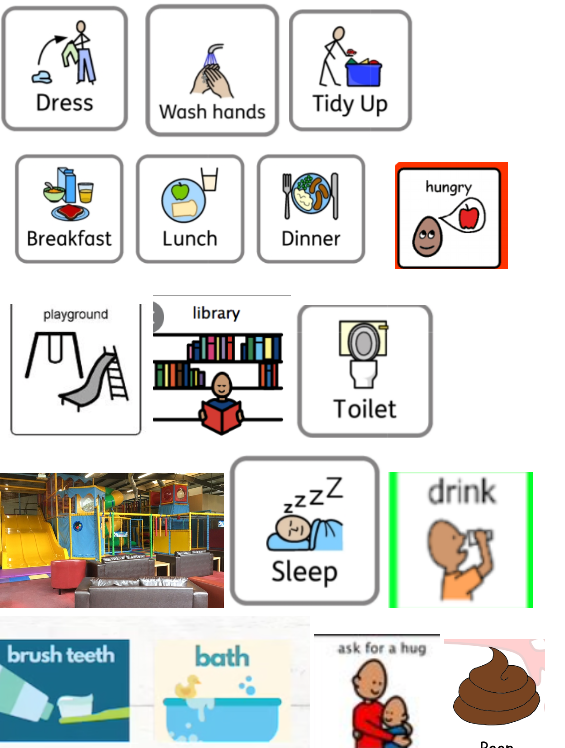
However, after some time we were finding it harder to keep up with the symbols. We had about five pages of symbols and I felt as if I always needed to add more and more to keep up with Jude’s growing language. At this point, Jude was trying to form sentences but still needed visual reminders. He was speaking a lot but it wasn’t always clear (he has suspected speech sound disorder and tongue tie) so we both needed the visual reinforcement but we weren’t keeping up with symbol mats.
So we decided to use an AAC device. I was a little reluctant at first. Mainly because the only experiences I had seen of AAC devices were with non-verbal children. I had seen how amazing these could be for children who couldn’t speak but I wasn’t sure if it would be for one who could. There is always a worry (although likely unfounded) that communication alternatives would replace speaking. I know that all forms of communication are valid but it is always in the back of your mind.
How we got started with an AAC device-Snapcore
There are a few different types of AAC so it’s all about finding one that works for you. We already have an iPad but we did have to clear quite a bit of storage as these apps are big in file sizes. There are free versions. Twinkl has one (it is pretty basic but is good if you are new to symbols/AAC as it is more focused on single keywords rather than building sentences) and Snapcore also have a free (lite) version of their app: although it has the symbols, it does not have the sound,
There are various different AACs so it is worth speaking to your speech therapist. We opted for Snapcore as it is lower cost than some but had the functionality we needed. However, this was on the advice of our therapist that we would likely only need to rely on this device for a few months if you are purchasing an AAC for the longer term then you may need a different programme.
TD Snap used to be £44.99 as a one-off purchase but has since changed to a monthly subscription.

It can seem overwhelming at first so I would start with using just a few functions. If you are starting with single words, then you might focus on certain topics: there’s everything from food to play to morning and evening routines.
The ‘quick fires’ question function is really useful to practice more conversational language-in facts, we managed to get our first 3-word sentence on the first day of using it when practising the question, ‘what colour do you have?’
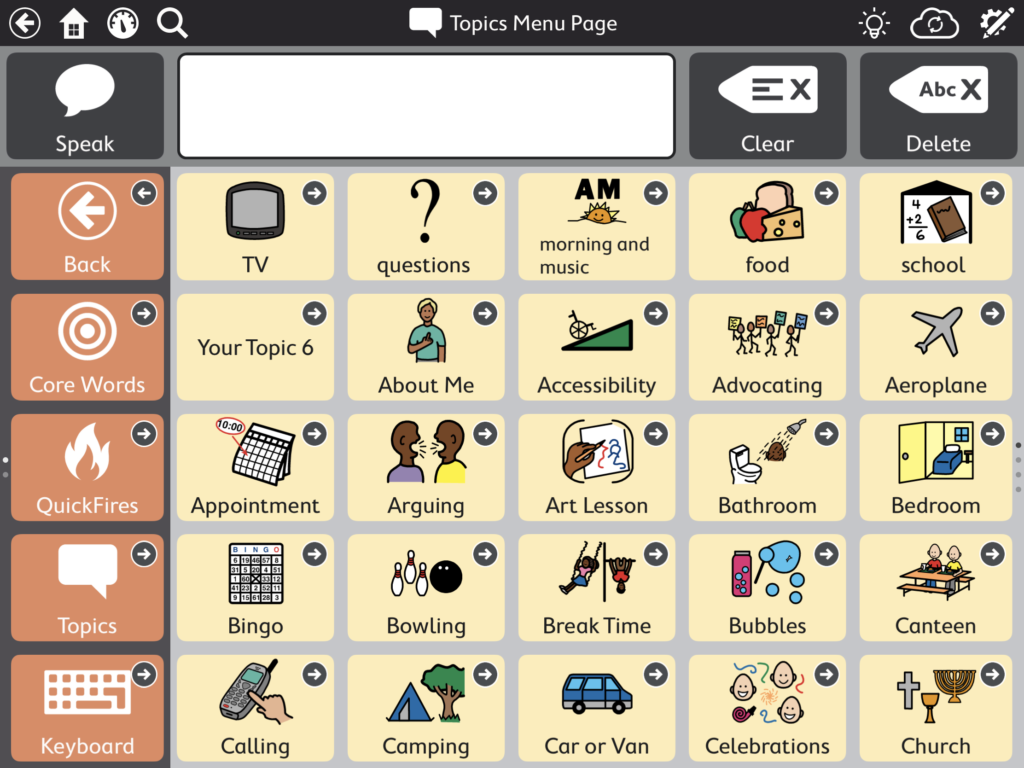
One thing that’s really great is you can create 6 different custom boards. These are the first 6 on the app (you can see them above, I’ve created 5) and you click ‘edit’ to then create a collection of symbols that you can easily access by this button. I’ve created one custom board for TV shows, another for toilet training and another for our morning routine.
When you are in a situation where you quickly require language input, you can click search and type in what you’re looking for to quickly access those symbols.
I will say that in the first instance you do need to guide them with it-Jude doesn’t use it unaided as he will press all the buttons at once!
I would recommend having the Ipad and with you and you control the use and modelling using it. For example, if Jude is playing playdough, I would pull up the playdough topic symbols and then sit with him and use the symbols and words and just keep it on that specific screen.

We found the AAC so much easier than constantly printing symbols out. It really expanded his words because when a situation arises, I could quickly pull up the symbols (for example,if I wanted to show him the symbols for broken, let’s fix it earlier and didn’t have those printed out.) It’s really helped him speak in sentences too and the quick fires are great for modelling social conversations. After a few weeks of using the device, Jude started to use short sentences and his speech went from strength to strength over using an AAC for 6 months-we were able to use it to model back and forth conversation, social skills and longer more complex phrases. After around 6 months, we no longer needed to use the AAC device regularly, but even now years on, we still on occasion use it to explain new concepts and add more language into our coversation.